
The call schedule
A schedule decides when the assistant calls. It is a thing apart from a question, and precisely so that two questions can be asked in one call rather than making the telephone ring twice in a row.
Schedules, call times, and what it means that a schedule is shared.
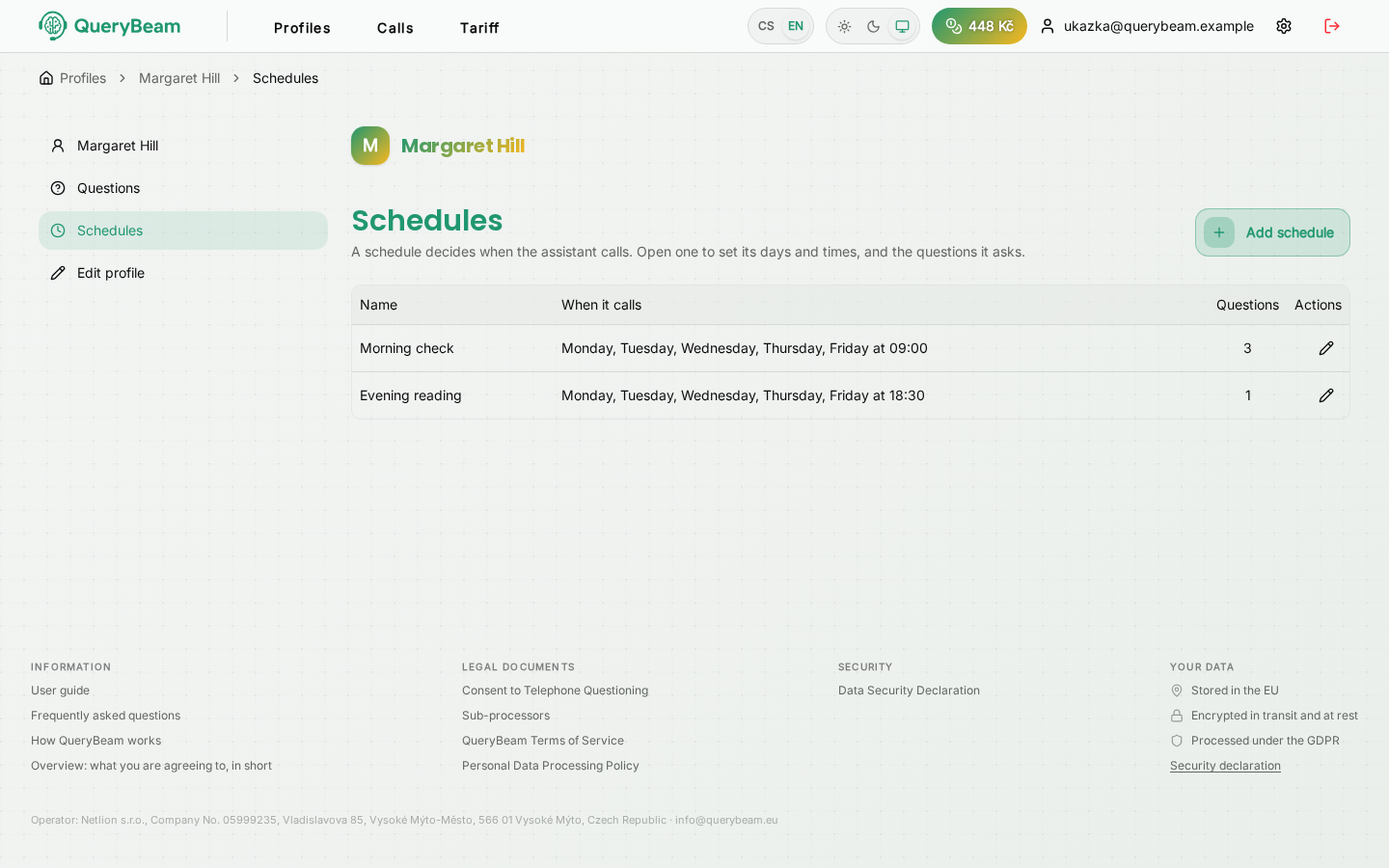
Two schedules on one profile. The morning check asks three questions, the evening reading two.
Schedules on the left of the profile.
A new schedule
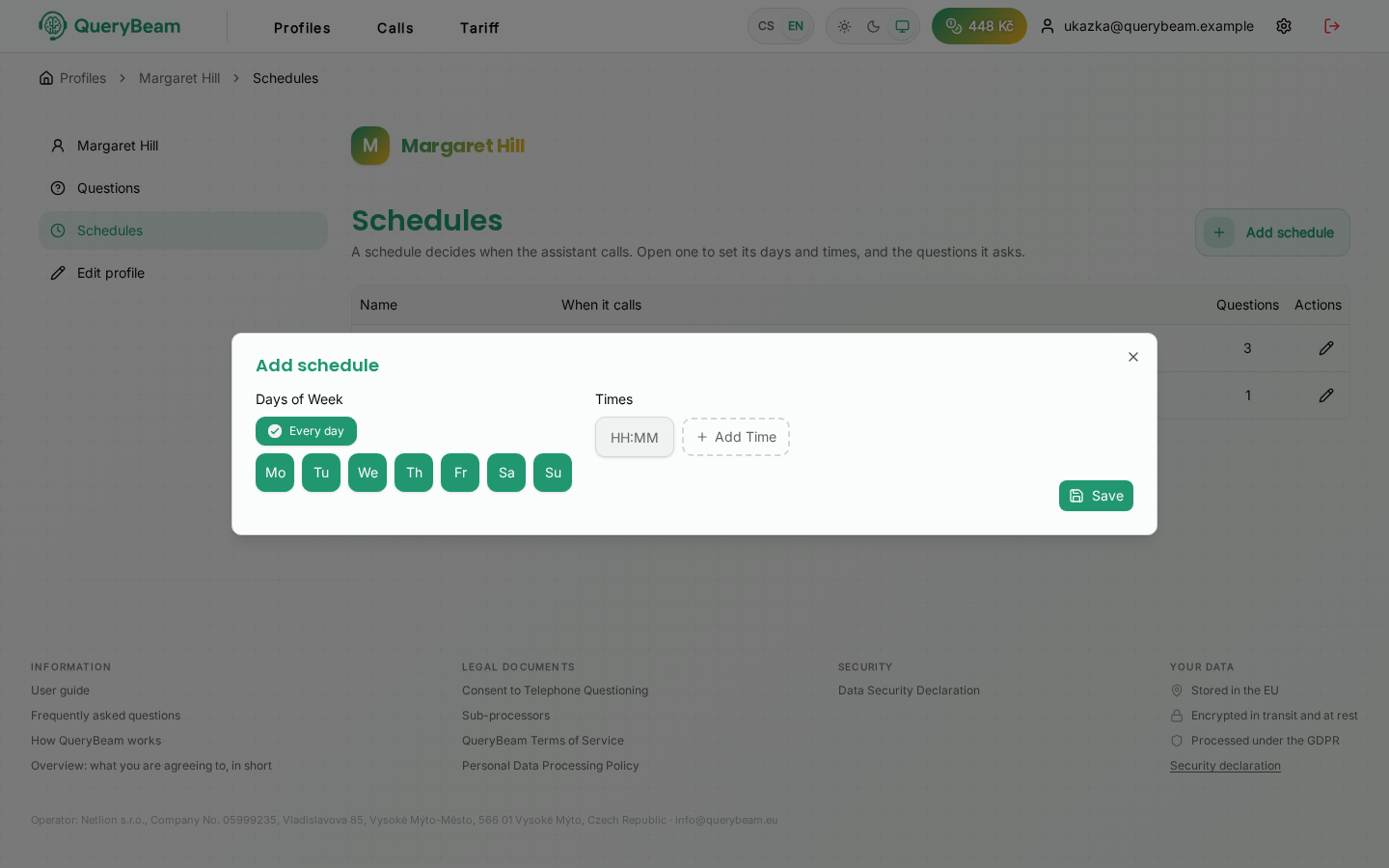
Days and times. The rest is filled in once the schedule is open.
The Add schedule button. You pick the days of the week and one or more times. The Every day toggle turns the whole week on at once; clicking an individual day takes it back out.
A time is written as HH:MM. Add as many as you like with Add time — each
one becomes a call of its own.
Naming it, and its questions
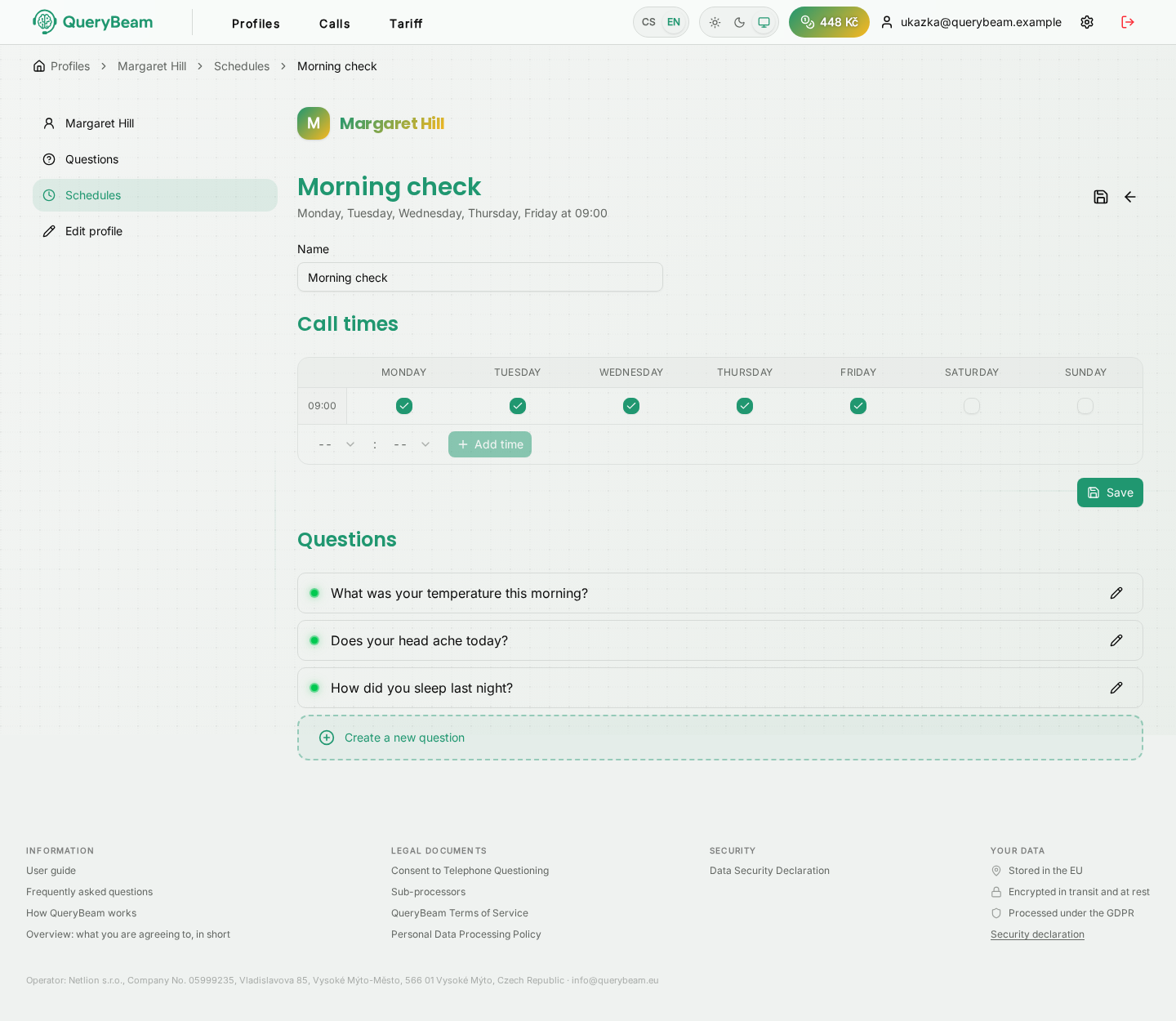
An open schedule. The name and the day-by-time grid at the top, the questions it asks below.
Open a schedule by clicking its row. This is where you fill in:
- Name — how you recognise it in the list and in the table of questions. "Morning check" is more use than "Schedule 3".
- Call times — a day × time grid. Ticking a box turns the call on for that day and time; unticking turns it off.
- Questions — the list of the ones asked in this schedule. Create a new question adds another right here.
Remember to confirm with Save.
Attaching an existing question
A question is put into a schedule from its own side: the pencil icon in the list of questions.
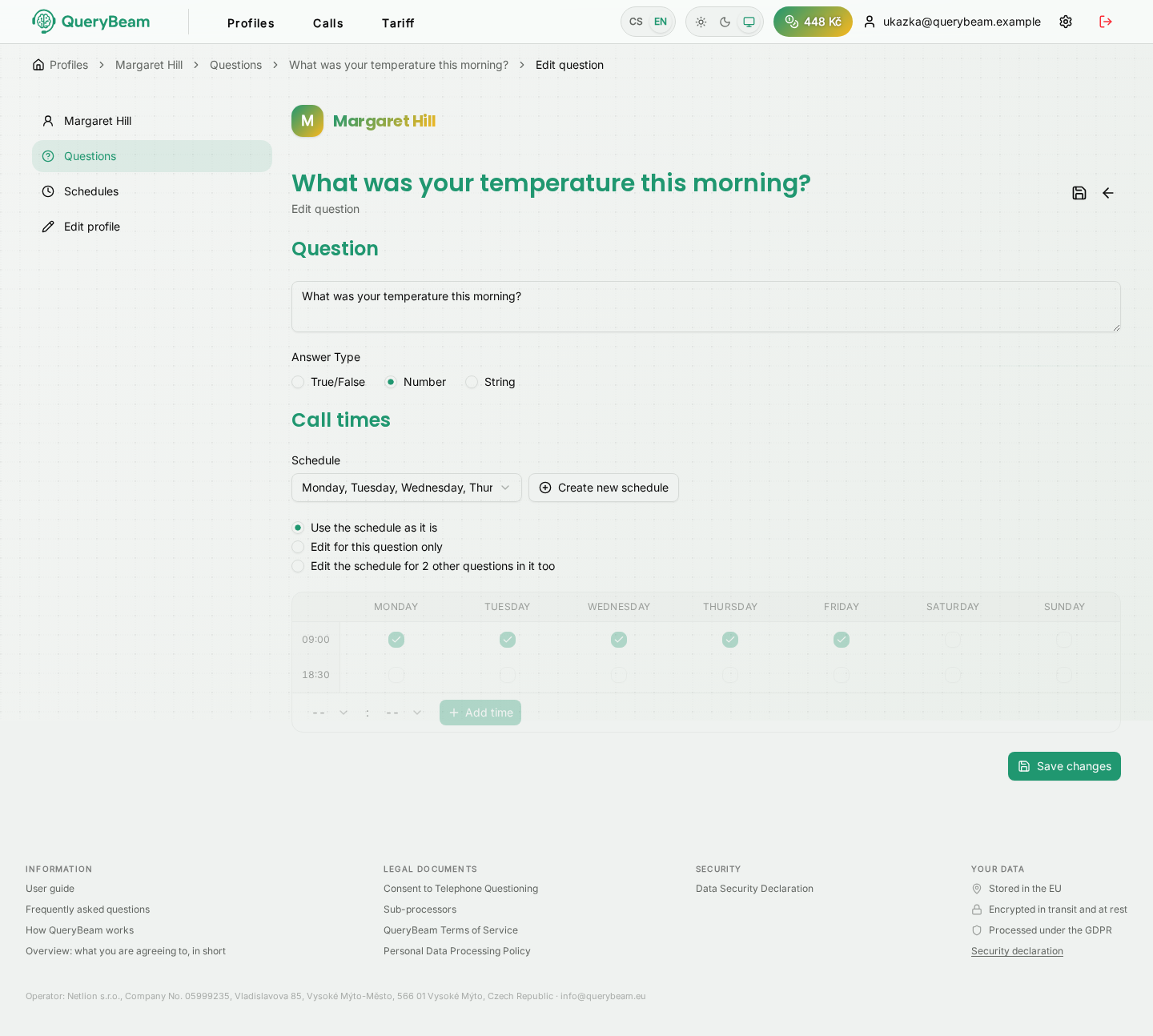
The schedule is chosen at the bottom, along with whom the change of days and times affects.
Pick a schedule already on the profile, or make another one with Create a new schedule.
A shared schedule and three ways to edit it
Because several questions share a schedule, the application asks whom your change to the days and times should touch:
A question with a schedule of its own is not listed by name but as Own schedule — there is no point linking to it, because it belongs to that question alone.
Open a schedule that questions on other profiles also ask on, and the application says so above the list. A change to the days and times shows up there too.
How a schedule becomes a plan of calls
Schedules are turned into concrete times — and only for profiles whose telephone number is verified. The scheduled times appear on the Calls page.
The plan recomputes itself. If the called person withdraws consent, or the telephone number changes, the scheduled calls disappear from the plan — so that the calls stopping is visible before that hour arrives.
Deleting a schedule
A schedule no question asks on can be deleted. The application points out that deleting it stops nothing being measured, because nothing was being asked on it anyway. A deleted schedule stops being used and disappears from the overviews; you cannot restore it yourself, but support can bring it back on request.
A schedule questions are using should be emptied first, by moving them elsewhere.