
Your first call, step by step
From an empty account to a scheduled call. Expect one step you do not do yourself — the code is confirmed by the called person, on their telephone.
Six steps from an empty account to the first scheduled call.
1. Confirm your e-mail address
The link from the registration e-mail. Without it no telephone number can be verified, so nothing can be called. It also credits the trial balance.
2. Create a profile
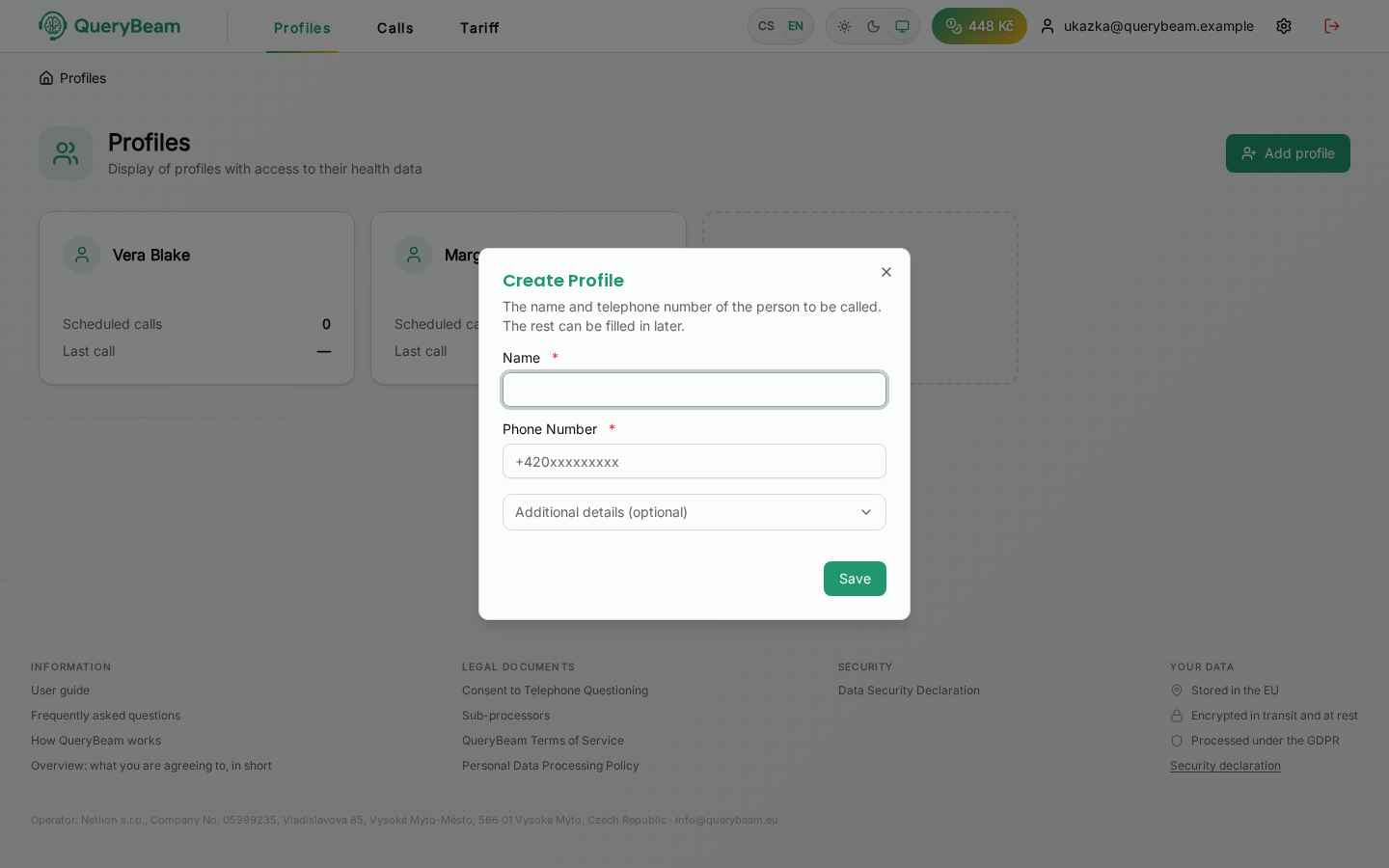
Creating a profile. A name and a number are enough.
On the list of profiles, the Add profile button. Fill in the name and the
telephone number in the form +420xxxxxxxxx. Date of birth, sex and a note can
follow later — the assistant uses them to adjust how it addresses the person, so
the call comes out more natural.
In more detail: Creating a profile.
3. Let the called person confirm consent
The application offers to verify the number as soon as the profile is saved. A message goes to that number carrying a code and the text the called person agrees to by confirming it.
The code goes to them, not to you. Ring them, or have them read it out, and then type it into the application. Until the number is verified, no calls are scheduled.
In more detail: Verifying the number and consent.
4. Write the questions
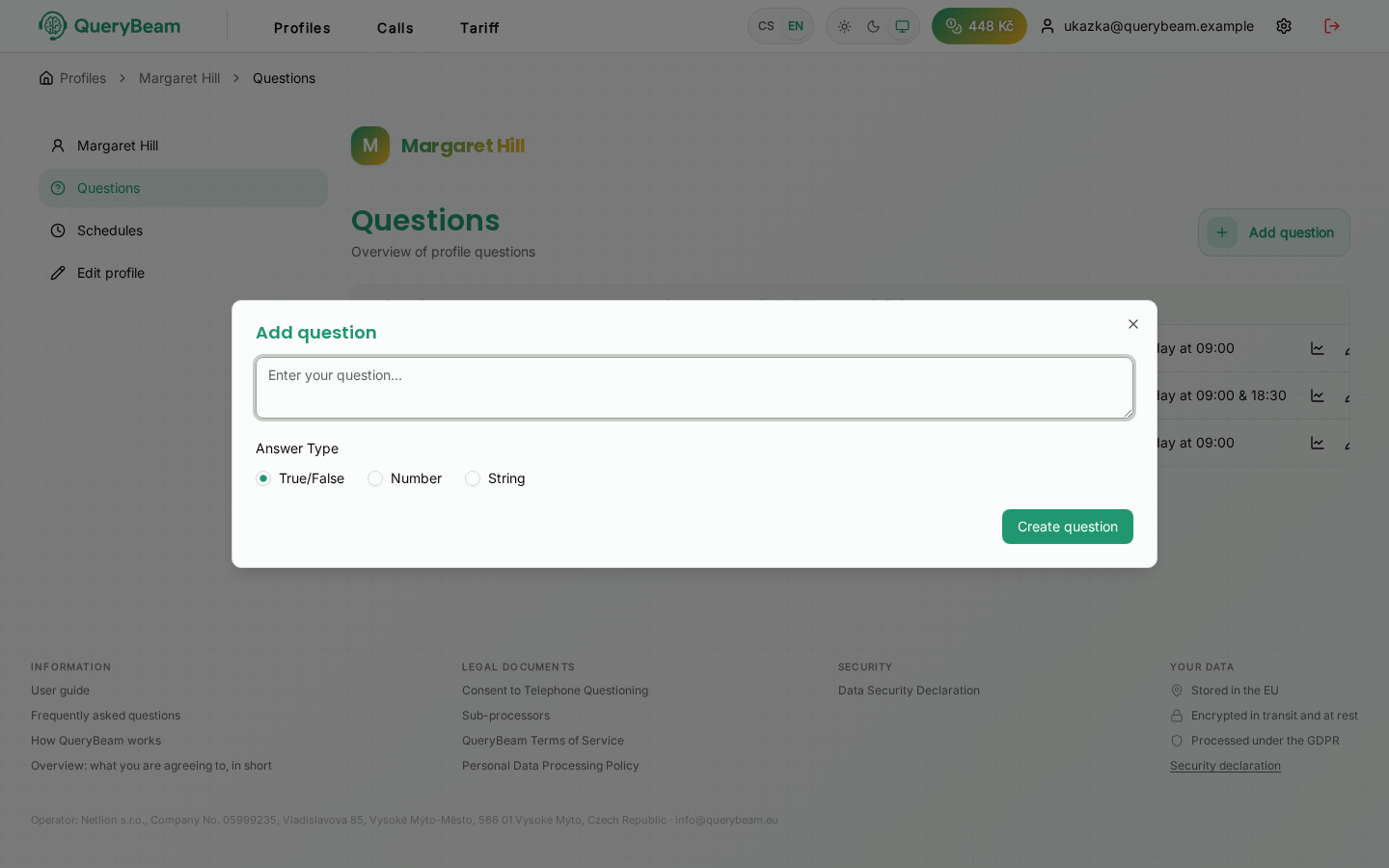
Adding a question. Your own wording, one of three shapes of answer.
In the profile, Questions on the left → Add question. Write the question the way you would put it over the telephone, and choose what shape the answer should be stored in: Yes/No, Numeric, or Text.
In more detail: Wording a question and Answer types.
5. Say when it should be asked
A new question has no schedule yet — the list says "No schedule" beside it and nothing is planned. You attach one from the pencil icon in its row.
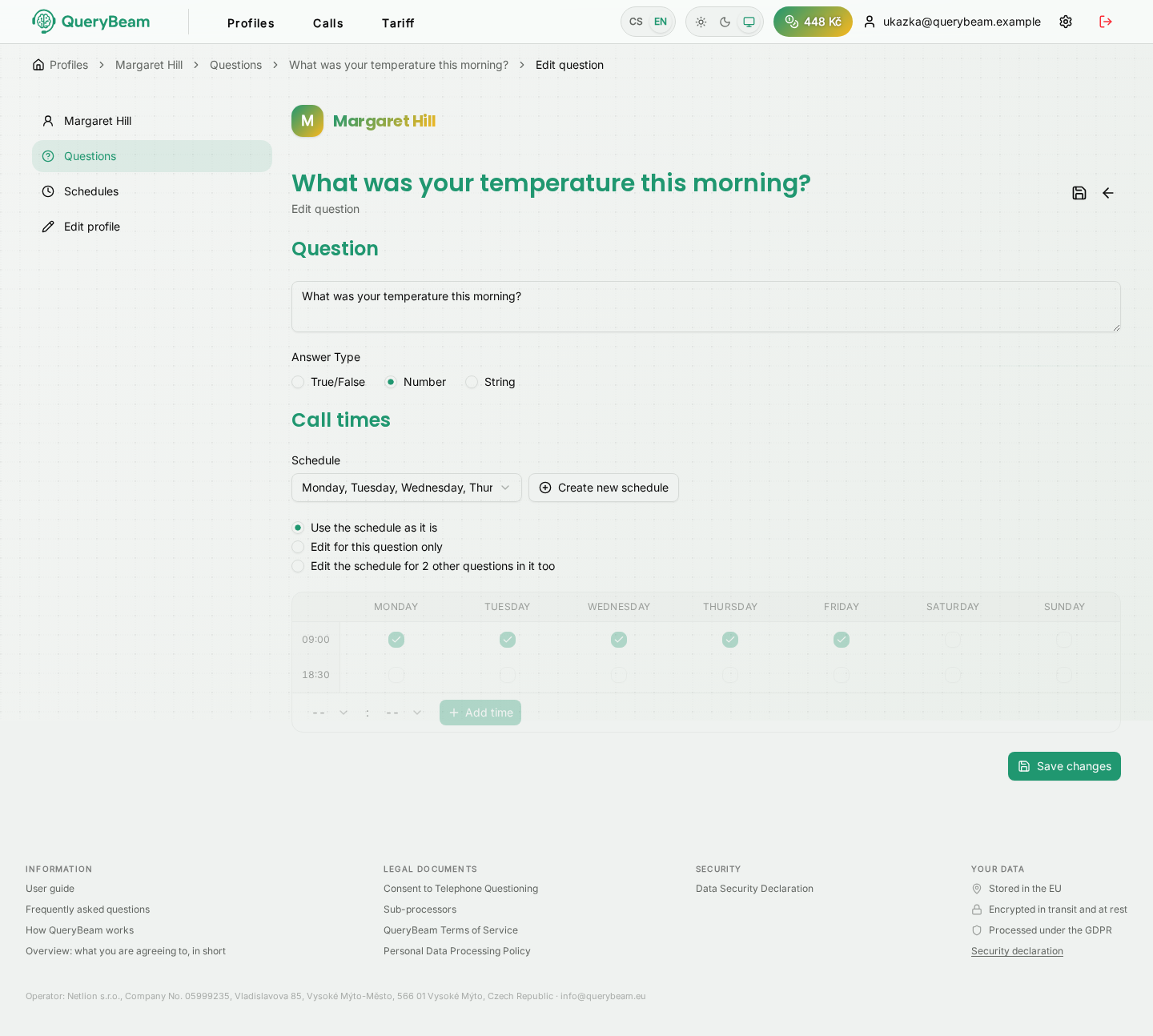
Editing a question. The schedule, days and times are at the bottom.
Either Create a new schedule (pick days and times), or choose one that is already on the profile — then you join the questions it asks at the same time.
A schedule is shared. That is why the application asks whom your change to the days and times should touch:
In more detail: The call schedule.
6. Check the plan
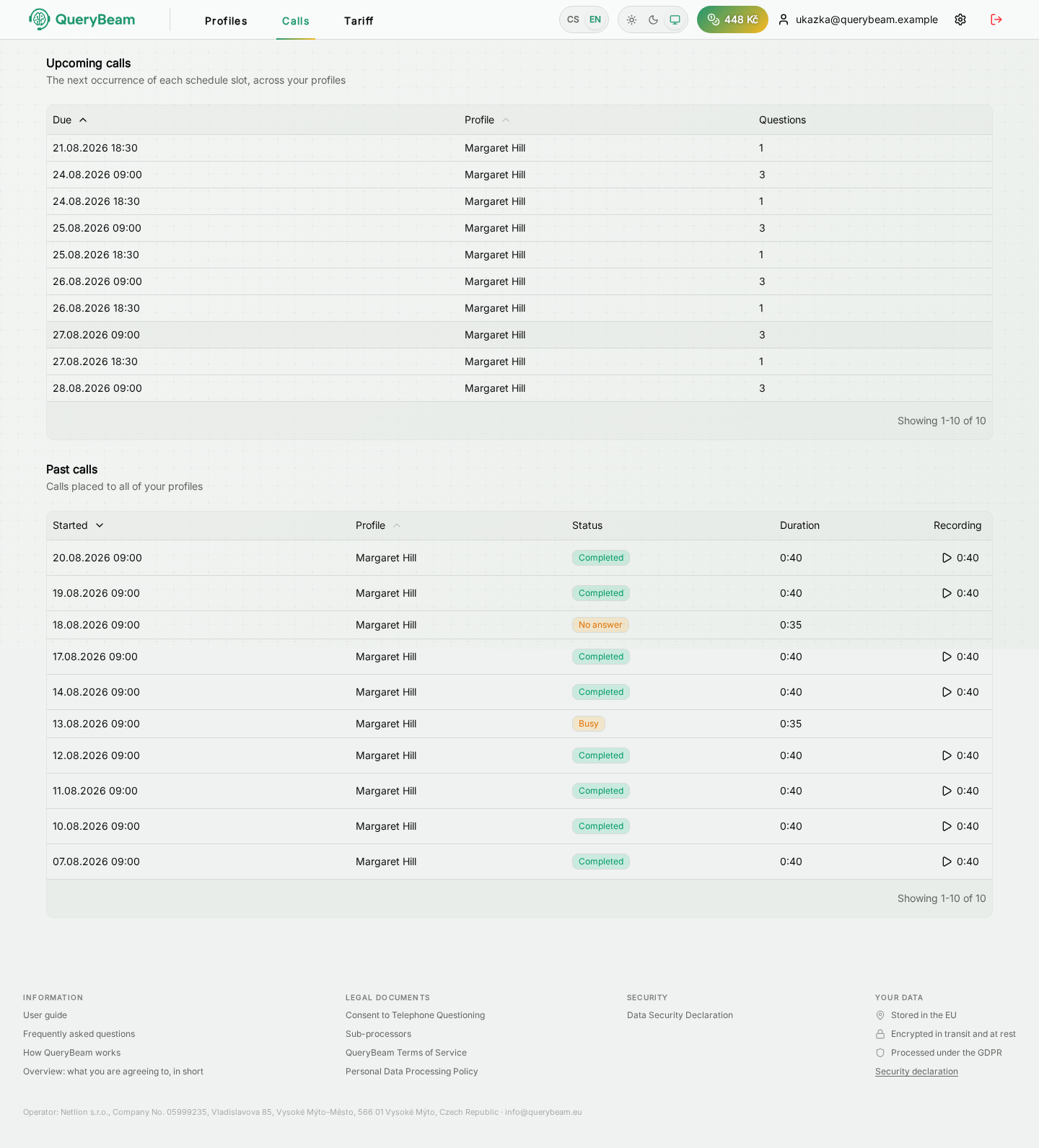
The top table is the plan, the bottom one the history.
Calls in the top bar. The "Upcoming calls" table must show the time you have just set. If there is nothing there, it is almost always one of two things:
- the profile's number is not verified,
- the schedule has no question attached.
Those and a few other cases are covered by Common problems.
7. Read the answers after the call
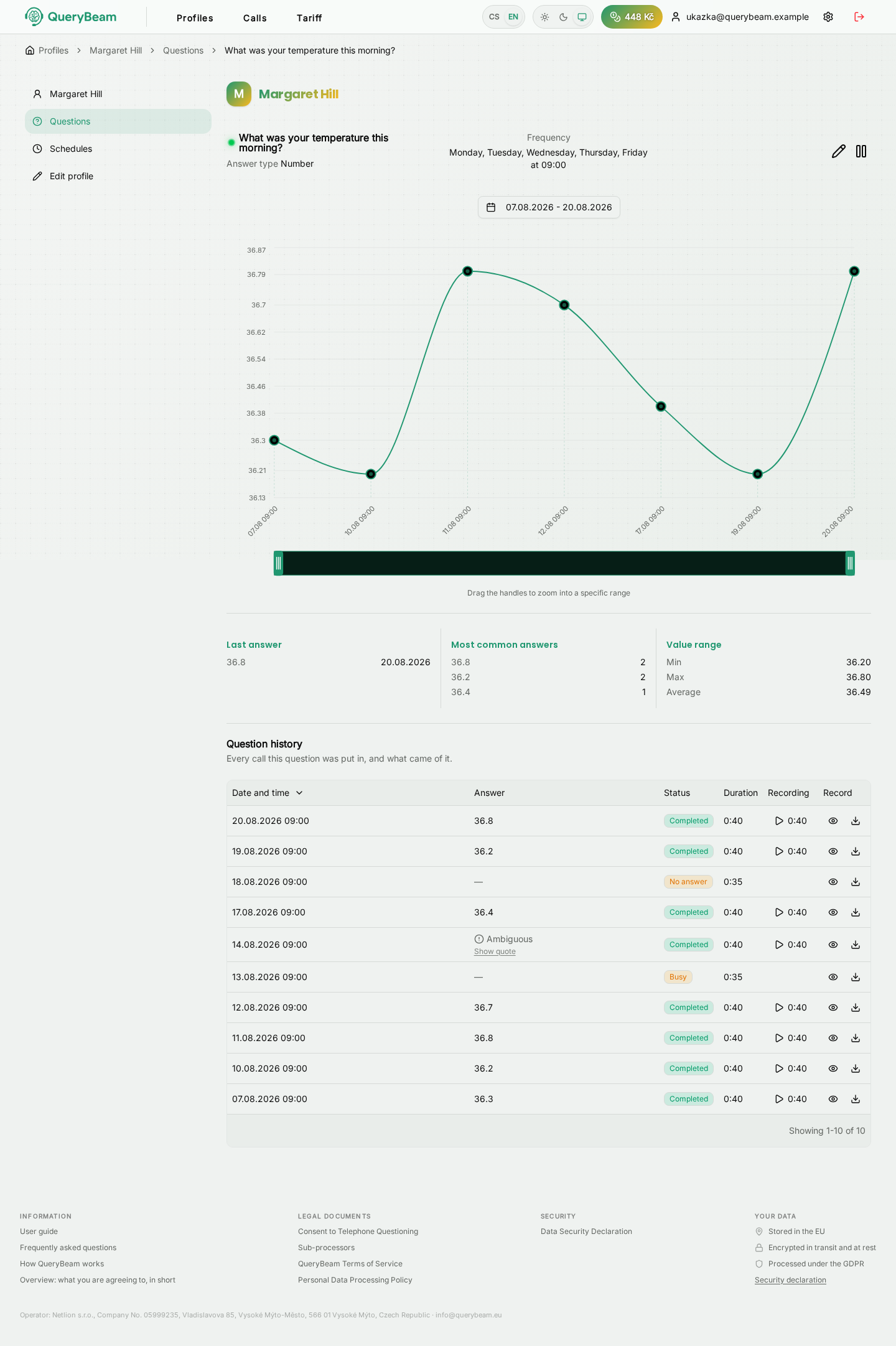
One question's history: a chart, a summary, and every individual call.
Open a question with the chart icon in its row. The trend over time is at the top, every call separately below it — with the answer, the status, the duration, the recording and the transcript.
Before you do anything significant on the basis of a value, compare it with the quotation: it is one click, and it shows you verbatim what the called person said.
In more detail: Reading the results.